

AI SRE Required Permissions
The following list includes all permissions required when the Feishu/Lark IM integration uses AI SRE, including basic notifications, War Room, AI SRE conversations, and AI-generated post-mortem reports. In the Feishu/Lark Open Platform Permission Management page, request each official permission name below.| Official permission name | Purpose |
|---|---|
im:chat | Create and manage War Room chats, get chat information, and add chat members |
im:message | Read and send direct and group messages |
im:message:send_as_bot | Send AI SRE replies and War Room messages as the bot |
im:message:update | Update messages sent by the app for AI SRE streaming replies |
im:message.group_msg | Read group chat history; required for AI SRE context and AI-generated post-mortem reports |
im:message.reactions:read | Query message reactions for AI SRE processing status confirmation |
im:message.reactions:write_only | Add or delete message reactions for AI SRE processing status confirmation |
im:resource | Upload and download images, files, and other message resources |
cardkit:card:write | Create and update CardKit cards for AI SRE streaming replies |
contact:user.id:readonly | Get user IDs by phone number or email for automatic linking and member invitation |
contact:contact.base:readonly | Get basic contact information for reading user and department metadata |
contact:user.base:readonly | Get basic user information for displaying sender names |
1. Create Feishu/Lark App
1. Create Custom App
Visit Feishu/Lark Developer Console to create an enterprise custom app. You can use the Flashduty official icon as the app icon. For details, see Feishu/Lark development documentation Create Enterprise Custom App.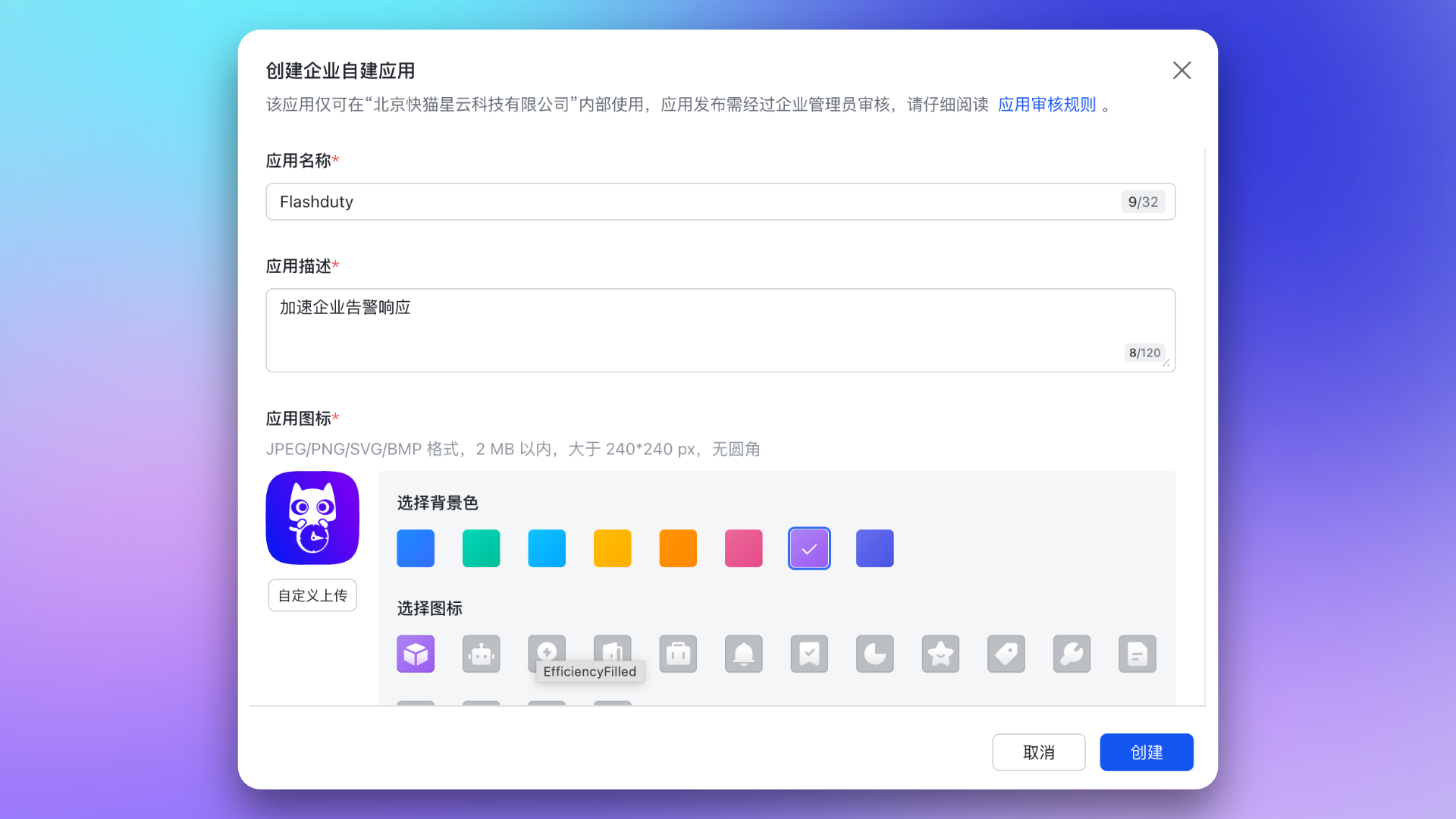
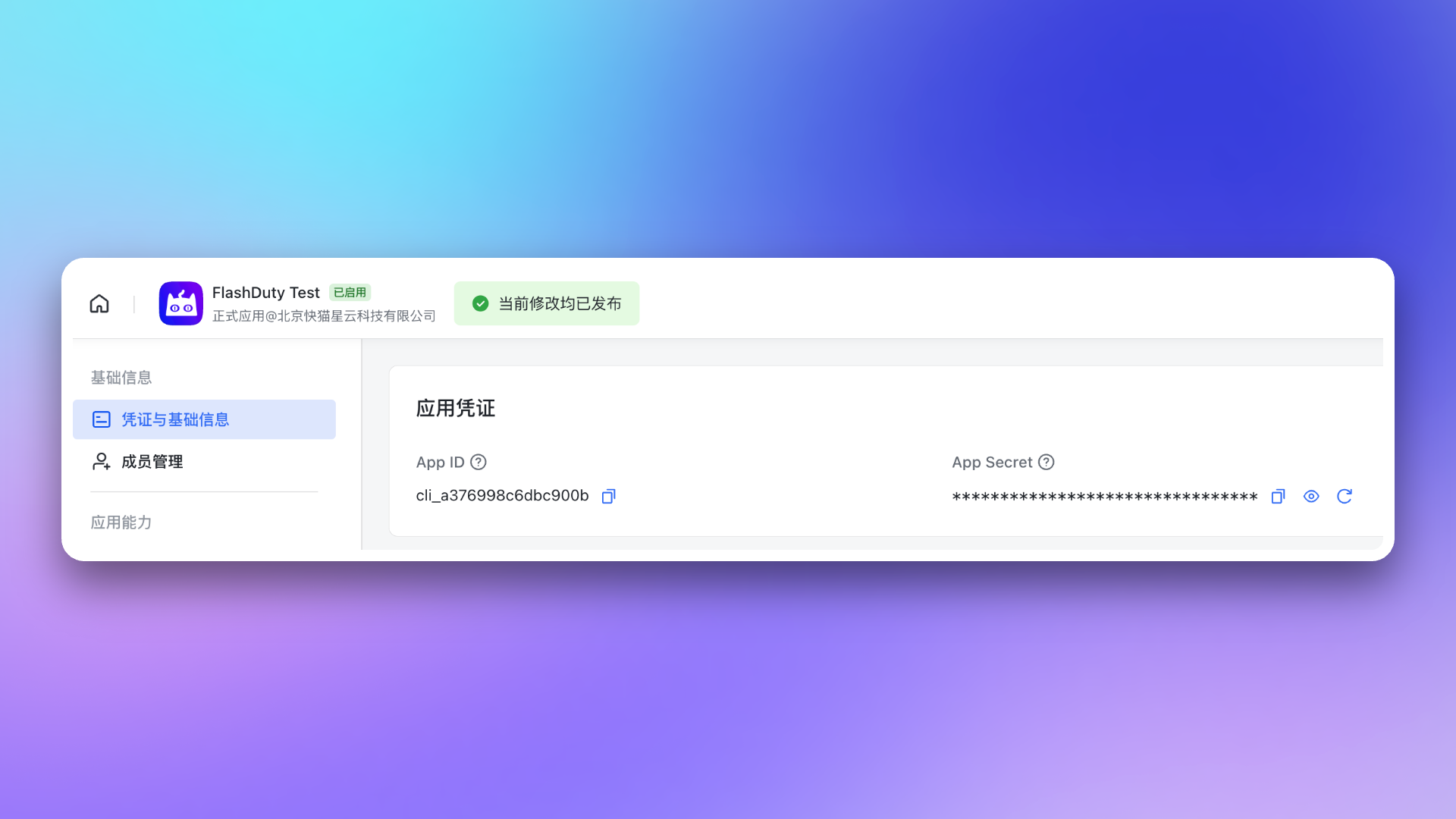
2. Copy Credential Information
Go to Credentials & Basic Info page, copyApp ID and App Secret for later use.
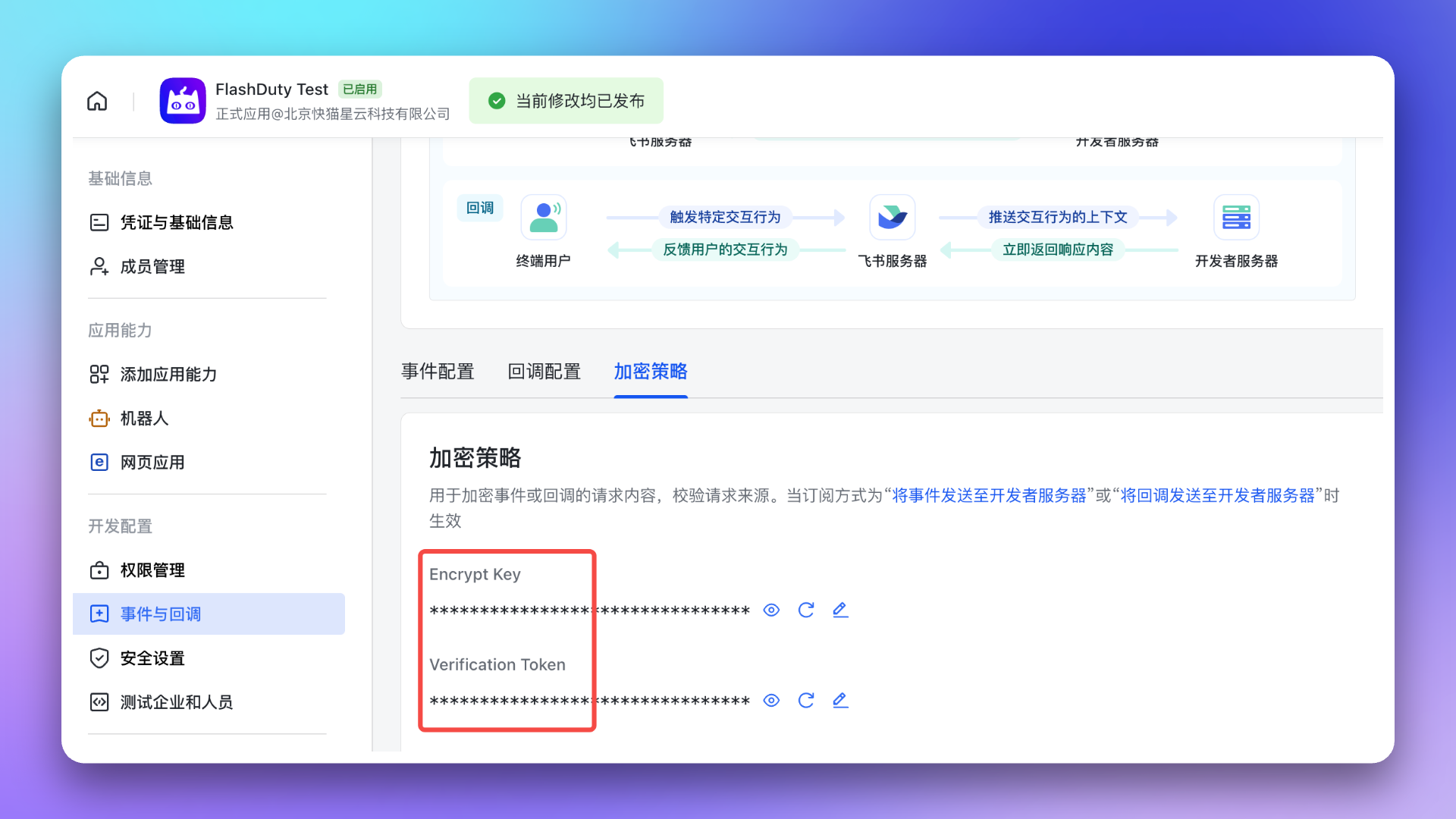
3. Copy Event Callback Token Information
Go to Development Configuration → Events & Callbacks → Encryption Strategy page, generate and copyEncrypt Key (recommended for better security) and Verification Token for later use.
2. Add Feishu/Lark Integration
Return to Flashduty On-call Integration Center page, select Instant Messaging → Feishu/Lark, fill in
Name and the App ID, App Secret, Verification Token, and Encrypt Key copied in the previous step, then click Save to complete creation.
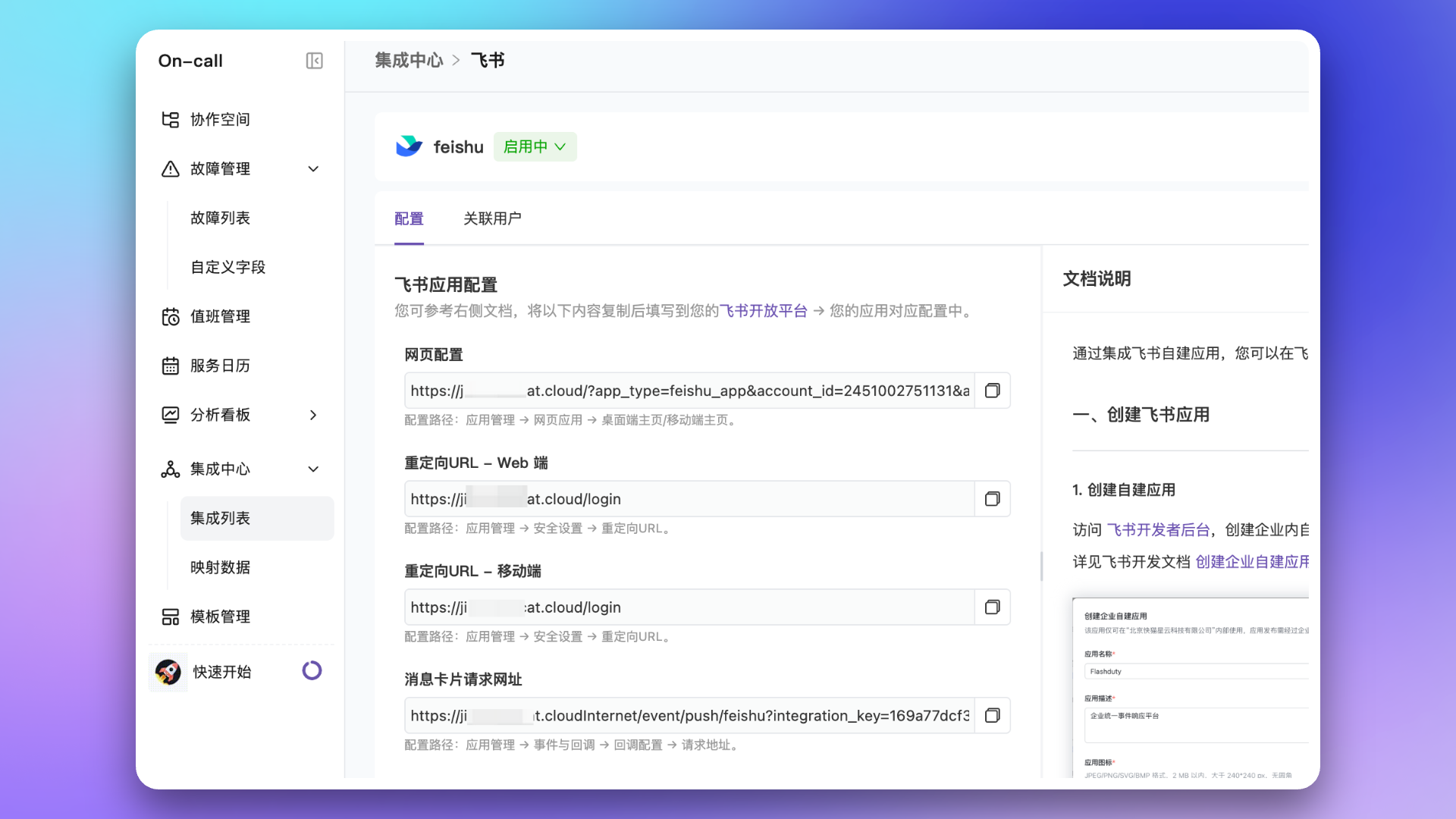
After successful creation, you’ll see the added Feishu/Lark integration in the list. Click its name to enter the details page to view Web Configuration URL, Redirect URL, and Message Card Request URL, which will be used in subsequent steps.
3. Configure Feishu/Lark App
1. Enable and Configure App Capabilities
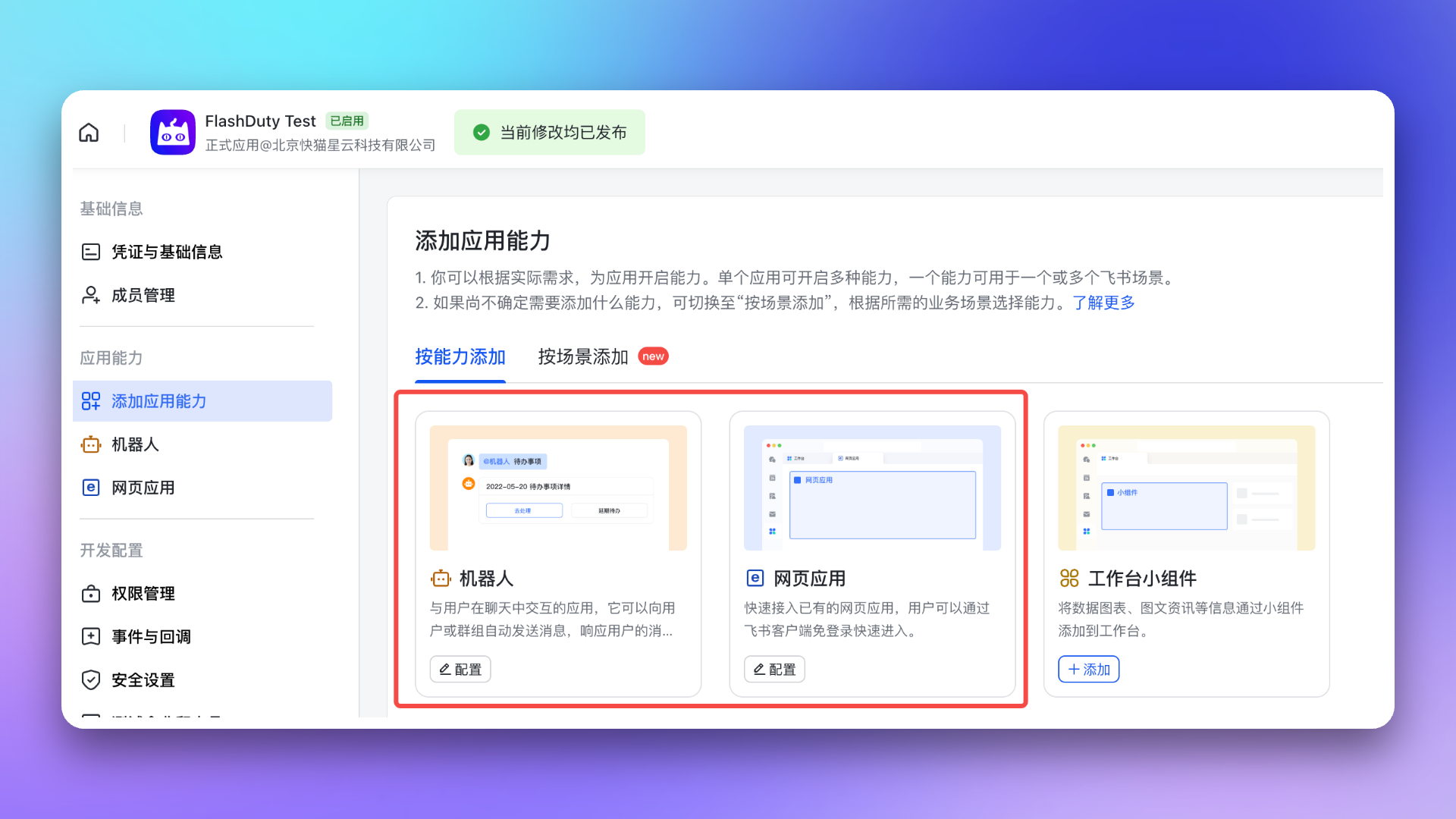
- Return to Feishu/Lark Developer Console, enter the Feishu/Lark app you just created, go to Add App Capabilities → Add by Capability page, and enable both Web App and Bot capabilities.
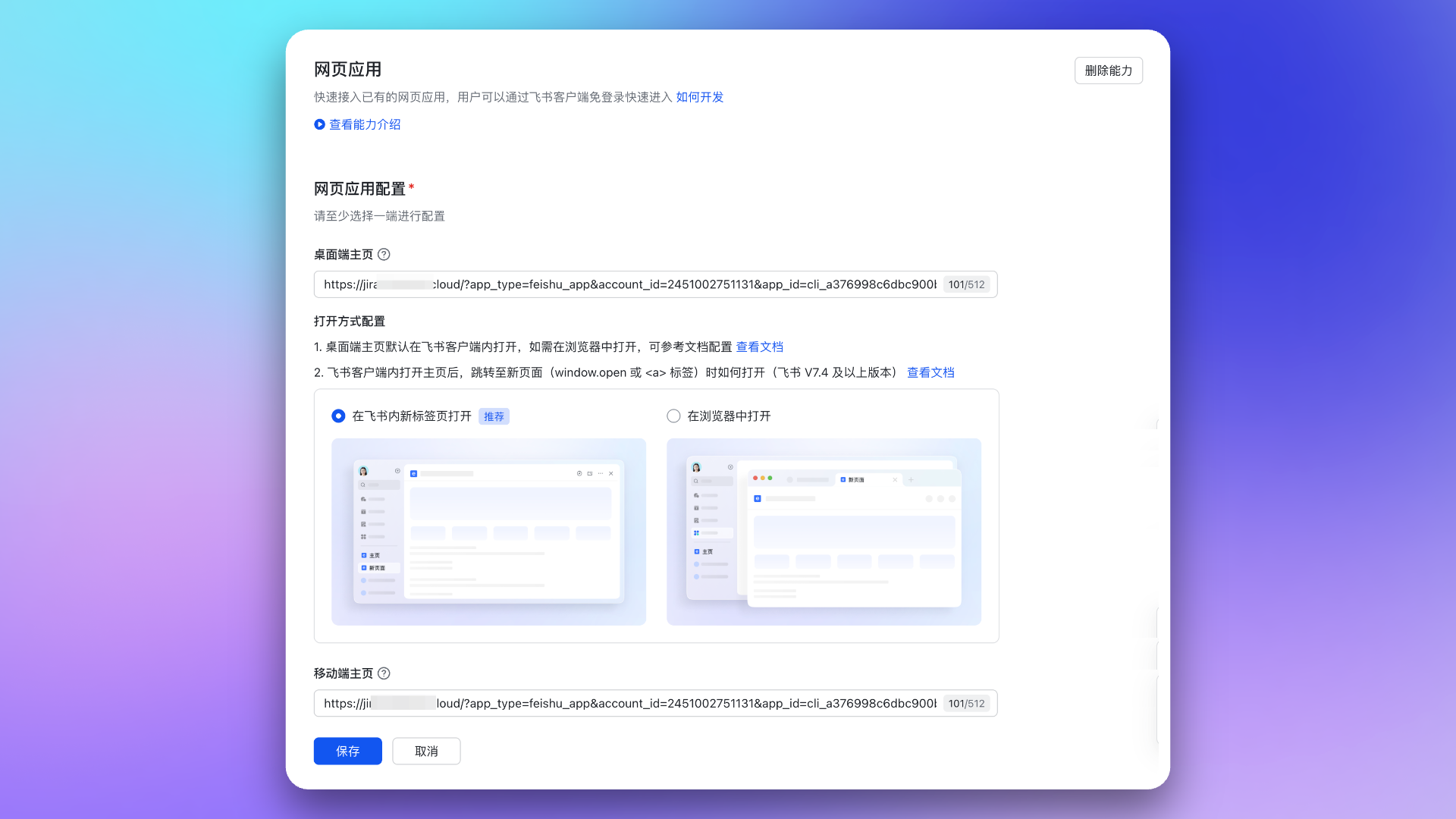
- Go to Web App page, configure
Desktop HomepageandMobile Homepage, both using the Web Configuration URL from integration details. See Feishu/Lark development documentation Configure App Homepage URL.
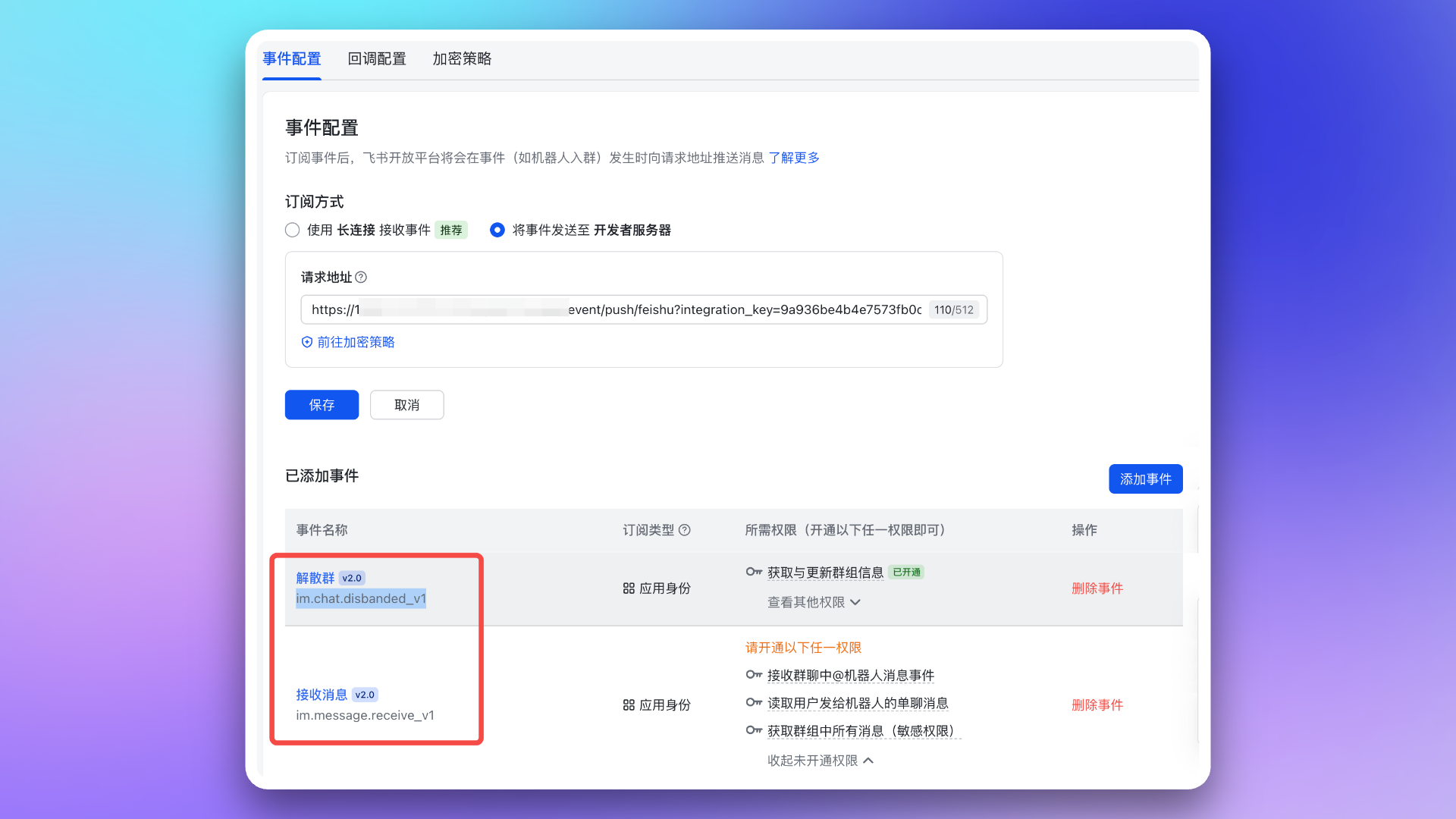
- Go to Event Callbacks → Event Configuration page, configure
Subscription Method(content is the Message Card Request URL from integration details). Then add the following two events:
im.chat.disbanded_v1im.message.receive_v1
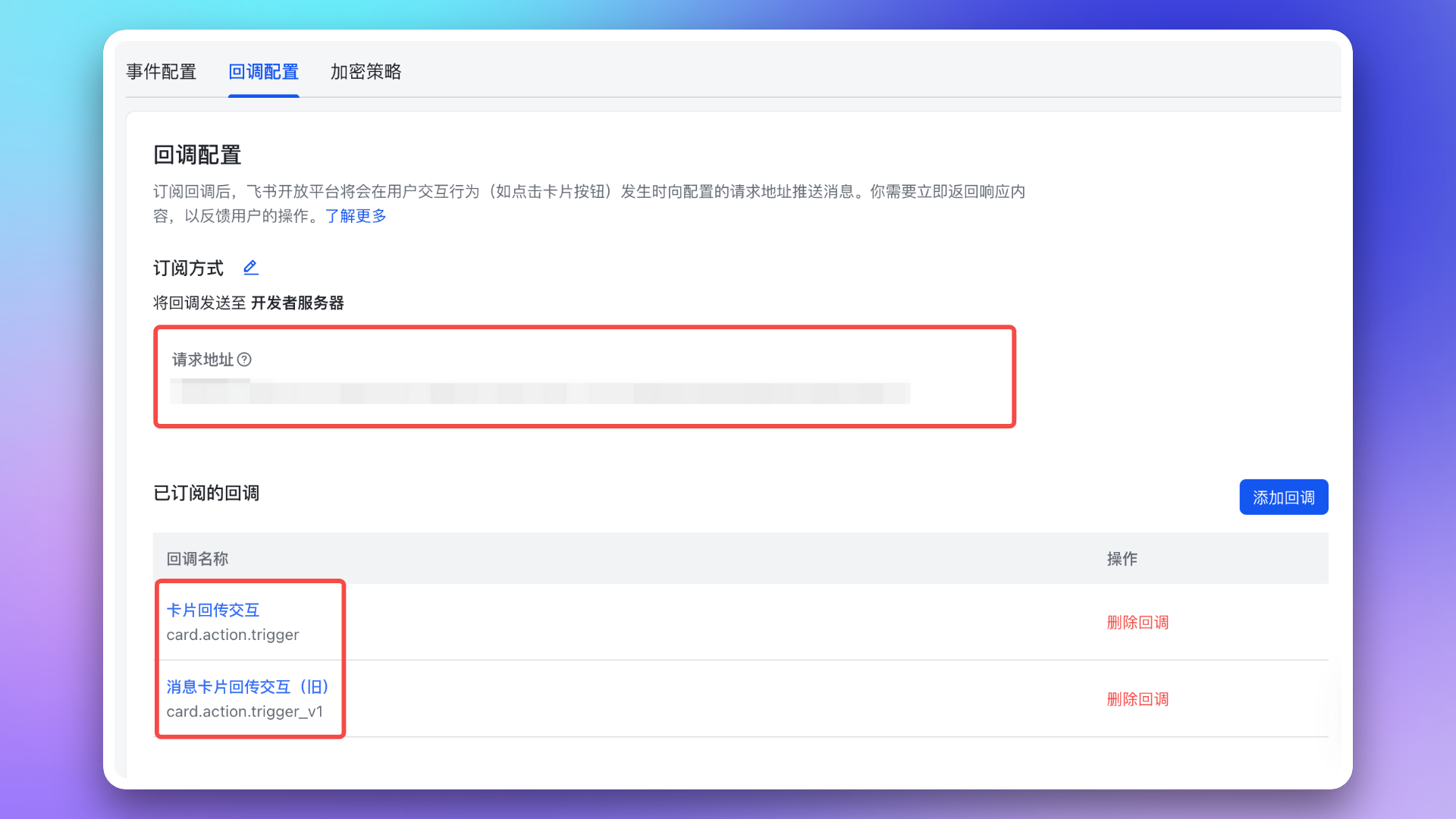
- Go to Event Callbacks → Callback Configuration page, configure
Subscription Method(content is the Message Card Request URL from integration details). Then subscribe to the following two callbacks:
card.action.triggercard.action.trigger_v1
2. Add Redirect URL to Feishu/Lark App
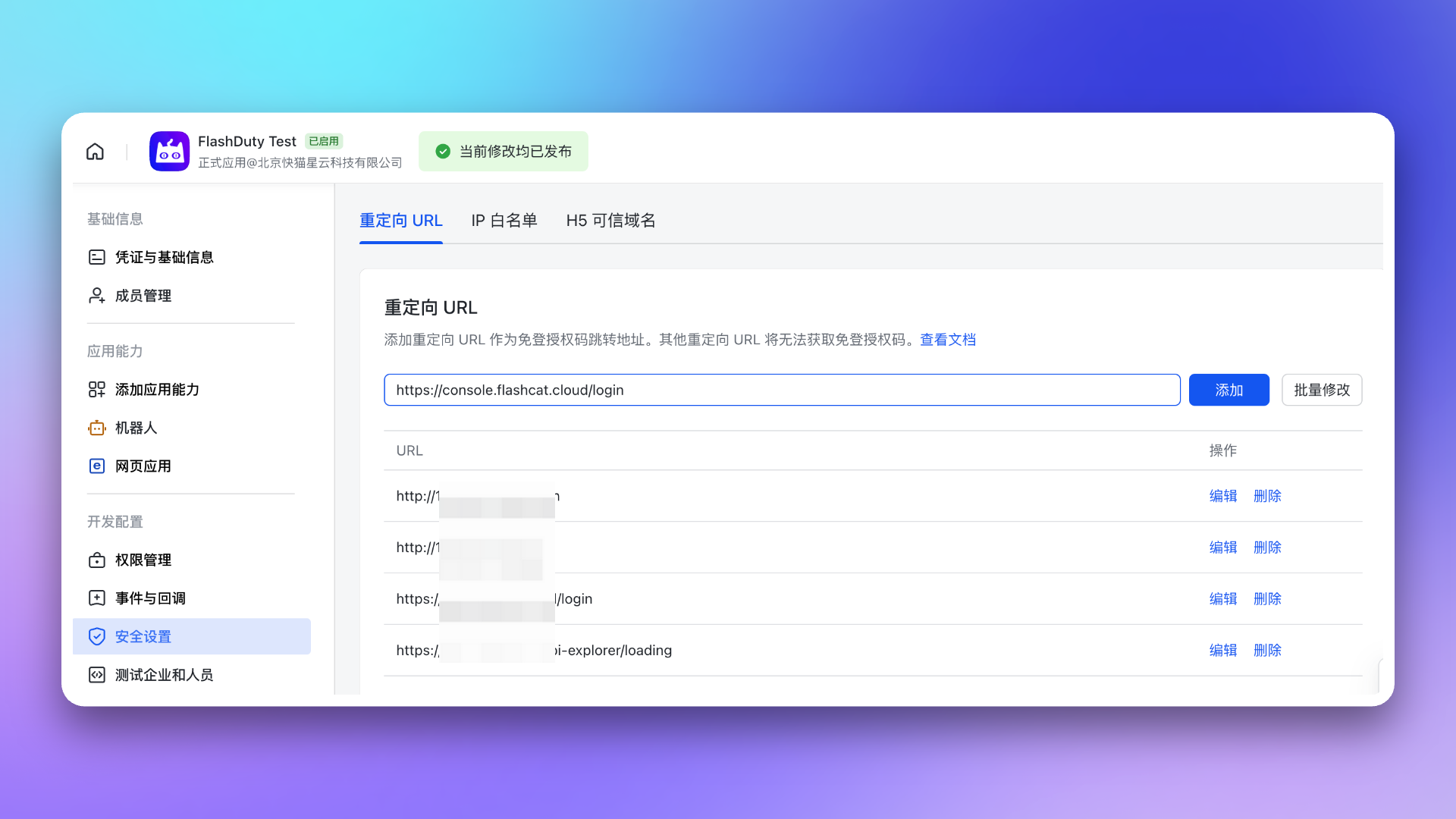
Go to Security Settings page, configureRedirect URL, content is the Redirect URL from integration details.
See Feishu/Lark development documentation Configure Redirect URL.
3. Request App Permissions
Go to the Permission Management page and request all permissions listed in AI SRE Required Permissions for the app created in previous steps.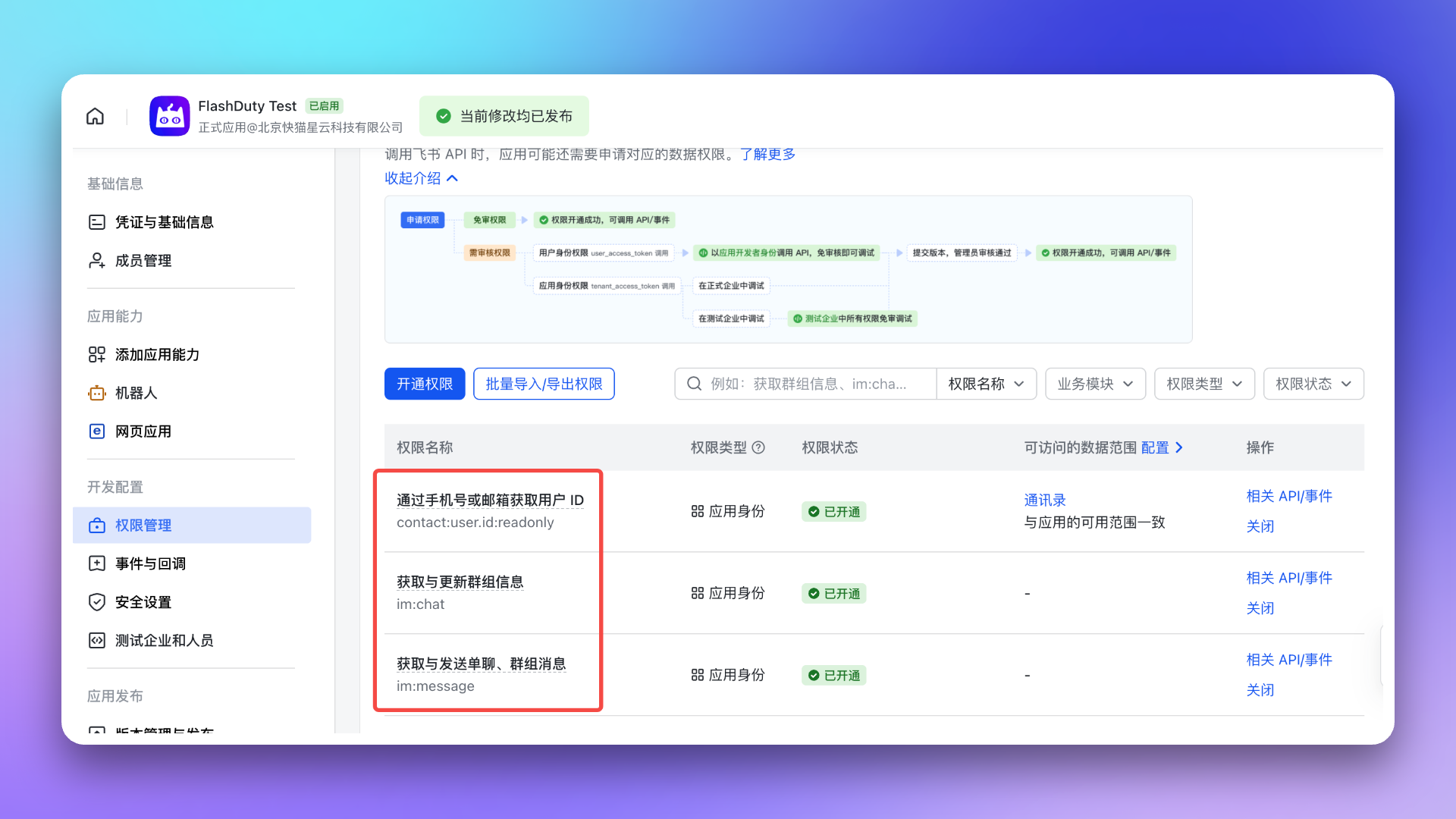
4. Publish and Use App
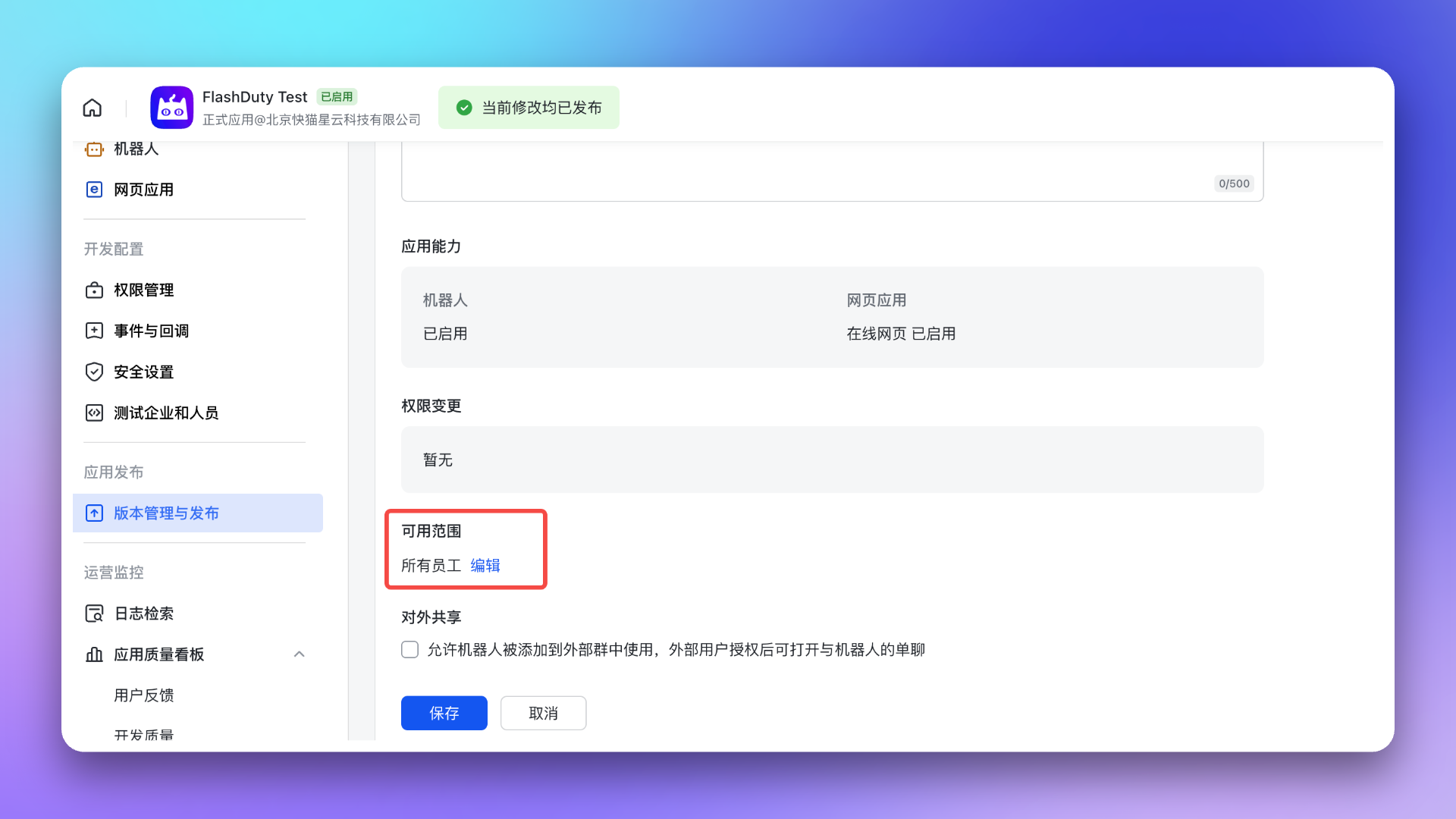
After completing all the above configurations, please publish the app. It can be used after admin approval. See Feishu/Lark development documentation App Publishing and Usage.To ensure everyone can use the app, adjust the app Visibility to all employees before publishing.
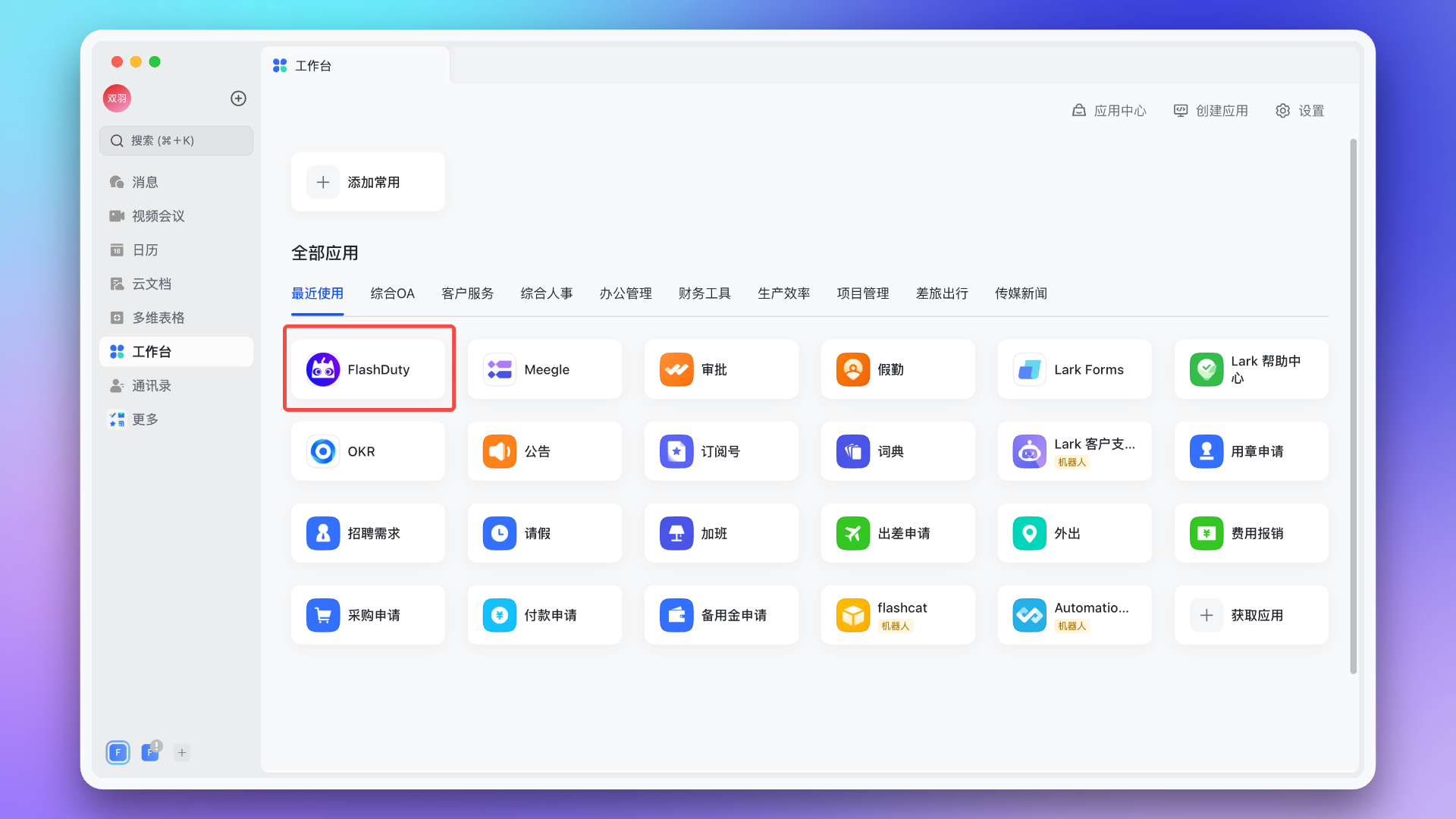
 After publishing, you can access the app via Mobile or Desktop. First access requires login to link Feishu/Lark and Flashduty accounts; subsequent access will be passwordless.
- Mobile
- Desktop
Feishu/Lark → Workspace → Search app name → Open App
5. Configure War Room
Ensure the app has been granted the AI SRE required permissions listed at the beginning of this page.After completing the previous steps, in the Flashduty On-call integration configuration page’s Enhanced Features section, check Enable War Room to activate this feature—no additional configuration needed.
6. Linked Users
In the Linked Users tab of the integration detail page, you can view the linking status between team members and Feishu/Lark accounts, and quickly complete batch linking.View Linking Status
The linked users list shows all team members and their linking status. You can filter by:| Filter | Description |
|---|---|
| All | View all team members |
| Linked | View only members who have linked their Feishu/Lark accounts |
| Unlinked | View only members who have not yet linked their Feishu/Lark accounts |
One-Click Linking
When unlinked members exist, click the One-Click Link button. The system will attempt to obtain Feishu/Lark account IDs via phone numbers or emails and automatically link them, equivalent to members logging into Flashduty using the same information on Feishu/Lark.7. FAQ
Messages cannot be delivered to individuals, operation log shows 'App not linked'?
Messages cannot be delivered to individuals, operation log shows 'App not linked'?
Go to Feishu/Lark → Workspace → Search app name → Open App, complete one login to link Feishu/Lark and Flashduty accounts so the system can obtain user identity for message delivery.
Message card buttons not working or showing errors?
Message card buttons not working or showing errors?
Escalation rule Feishu/Lark group chat list is empty?
Escalation rule Feishu/Lark group chat list is empty?
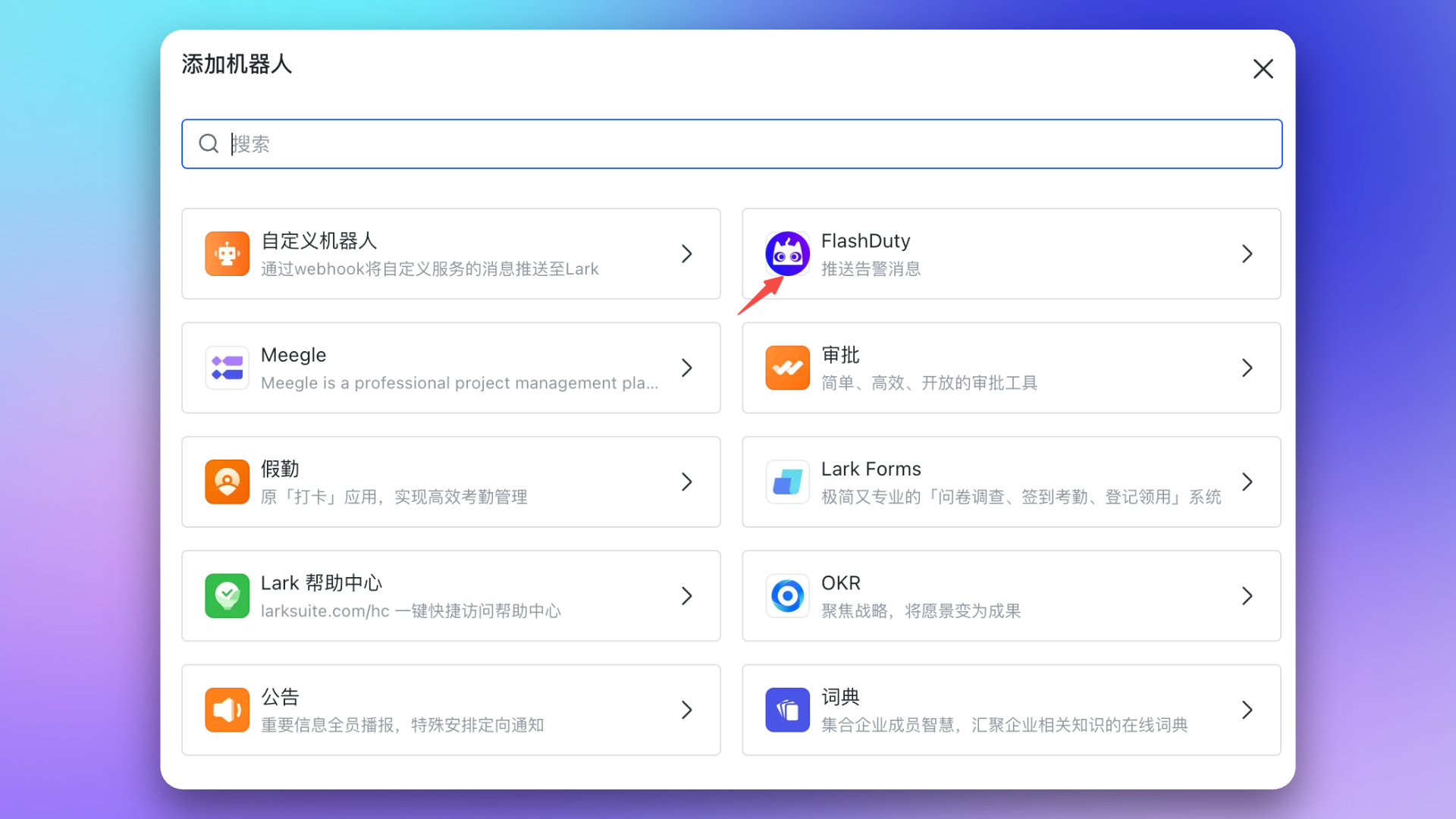
- Go to Feishu/Lark, add the created Flashduty bot to the target group chat
- Return to escalation rule configuration page, refresh and reselect the group chat list
Feishu/Lark custom app API limits?
Feishu/Lark custom app API limits?
Call Limits:
Rate Limits:
| Feishu/Lark Version | Total Calls/Month | Refresh Time |
|---|---|---|
| Basic Free | 10,000 | 1st of each month |
| Other versions | Unlimited | - |
| Scenario | Limit |
|---|---|
| All APIs | Max 50 calls/second per app |
| Send message API | Max 1000 calls/minute per app |
| Group bot Webhook | Max 100 calls/minute |
| Send to same user or group | Max 5 calls/second |
Why isn't War Room working as expected?
Why isn't War Room working as expected?
- Check again that the app has been granted the AI SRE required permissions listed at the beginning of this page
- See the FAQ section in War Room documentation